Connect Wolt to SIDES via self-onboarding
What You can connect SIDES to Wolt via self-onboarding. Afterwards, you will receive Wolt orders directly in SIDES, you can push your menu to Wolt, mark items as sold out, and temporarily pause your Wolt store when needed. Where Admin: External services > Delivery portal account > Add delivery portal account > WoltV2. |
Introduction
Connect SIDES to your Wolt restaurant in about 2 minutes. Once connected, you can
- Receive your Wolt orders directly in SIDES
- Push your menu to Wolt
- Mark items as sold out
- Pause your Wolt store for a limited time
Requirements
- Your Wolt business account login (email and password)
- Your SIDES admin login
Connect Wolt
Video: Connect Wolt, 1:46 (Open the video on YouTube)
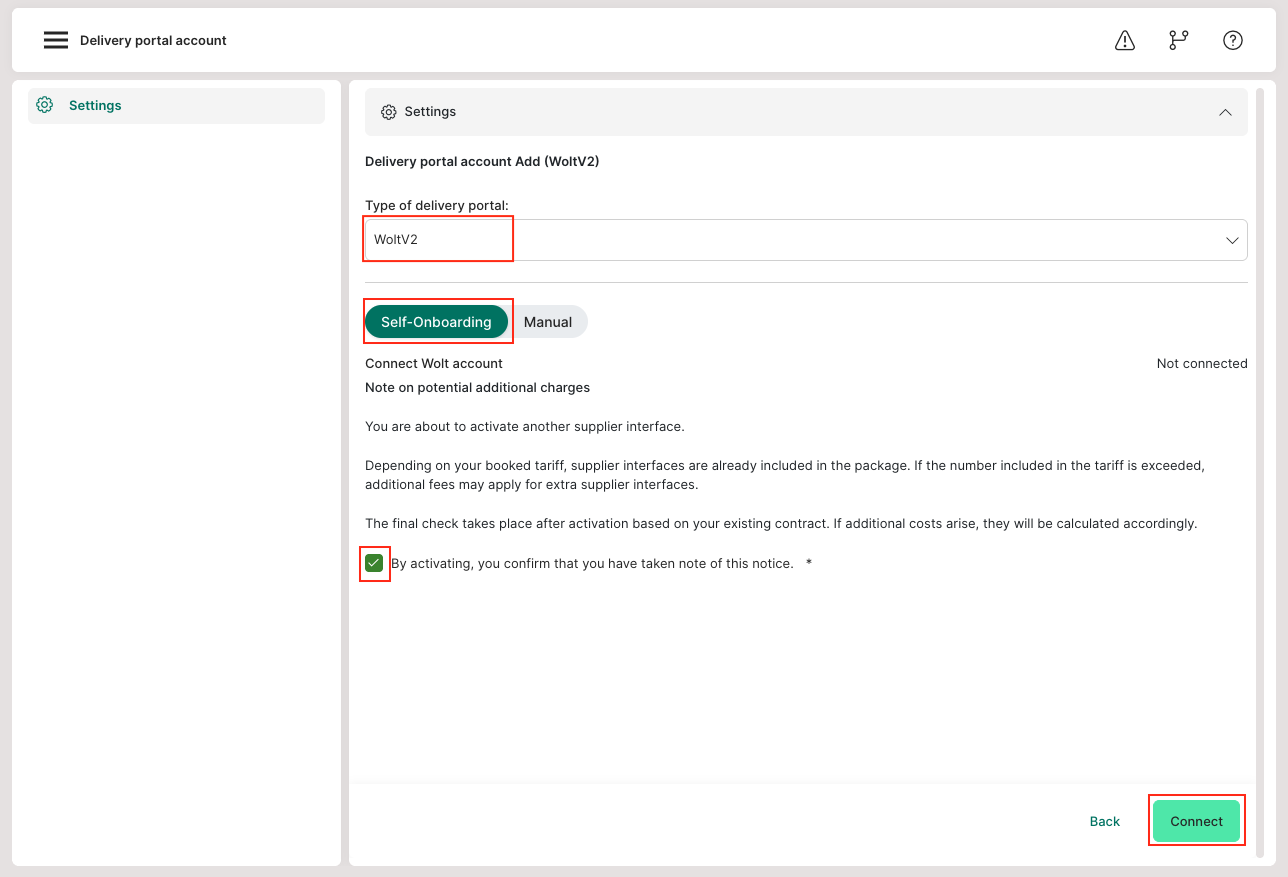
- In SIDES, go to Admin: External services > Delivery portal account, select your store, and click "Add delivery portal account".
- Under "Type of delivery portal", choose "WoltV2".
- Select "Self-Onboarding", read the "Note on potential additional charges", select the checkbox, and click "Connect".
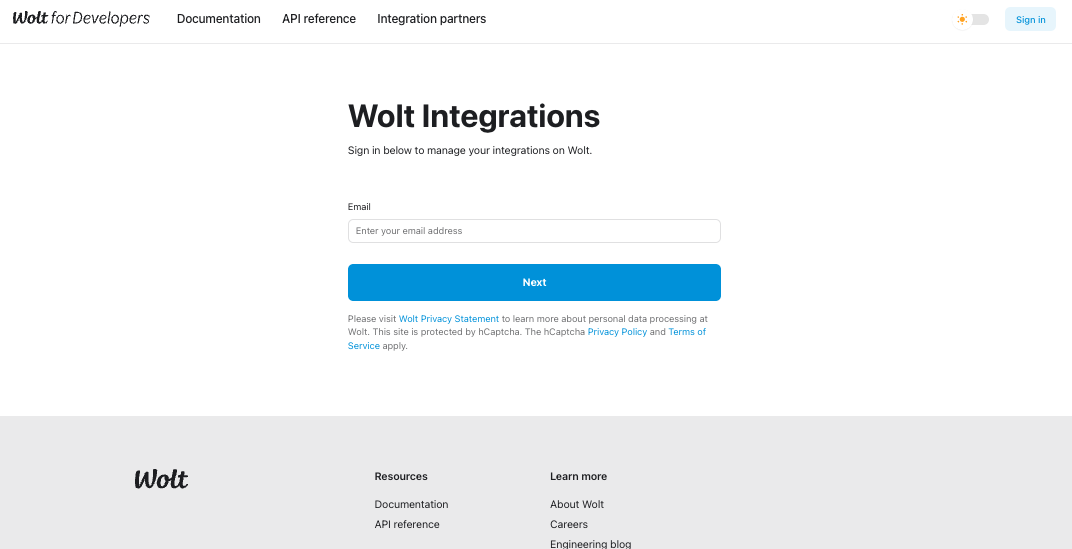
- Log in to Wolt on the page that opens, with your restaurant account.
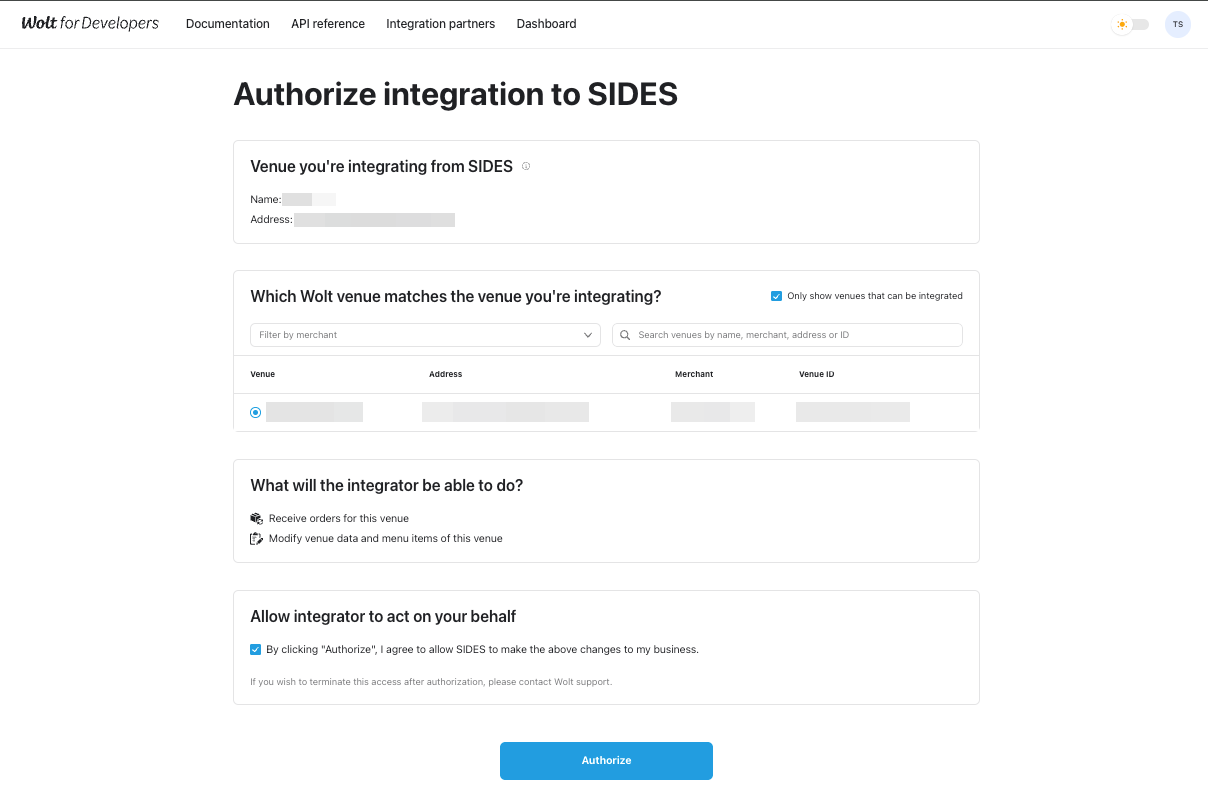
- Pick your restaurant, tick "Allow integrator to act on your behalf", and click "Authorize".
- Done. You are back in SIDES, and Wolt now shows in your delivery portal accounts list.
You can reopen the account settings at any time to change the price group or how articles are matched.
Frequently asked questions (FAQ)
- Which email address do I use to log in to Wolt?
- Use the email address of your Wolt business account, not a personal Wolt account. Look it up before you start, so the login in step 4 goes smoothly.
- Can I enter my Wolt credentials by hand instead?
- Step 3 also offers manual onboarding, where all Wolt credentials are entered by hand. Use it only in exceptional cases. Self-onboarding is the standard way to connect.
- What do I do if something goes wrong?
- Delete the Wolt integration under "Delivery portal accounts" and go through the steps again.
- What does the status "Unable to integrate" mean?
- This status means that your Wolt account is currently connected to another integrator (POS system) that you previously worked with. To proceed with the integration, you need to contact Wolt and request that your integration be switched to SIDES.