External delivery rules for external delivery service (DaaS)
What External delivery rules let a store automatically send eligible delivery orders to its configured external delivery provider when a saved rule matches. Staff can manually forward an order when it does not match the rule. Where Admin: External services > External delivery rules. |
Introduction
Rule-based external delivery forwarding (DaaS) lets a store automatically send eligible delivery orders to its configured external delivery provider when a saved rule matches. Staff can manually forward an order when it does not match the rule.
Selecting the forwarding mode for a store
The existing manual forwarding switch and the new rule selection work together.
Store configuration | Behavior |
Manual forwarding enabled | Staff must forward orders manually to the external delivery provider. |
Manual forwarding disabled and "Automatically" selected | All delivery orders are forwarded automatically to the external delivery provider. |
Manual forwarding disabled and "Rule-based" selected | Only delivery orders that match the assigned rule are forwarded automatically. Staff can still manually forward orders from the POS. |

Note:
If rule-based forwarding is selected without choosing a rule, saving switches the store to automatic forwarding without a rule filter.
Each store can have one forwarding rule assigned at a time. A rule can contain several groups and can be reused by several stores. The rule controls whether forwarding happens; it does not compare provider prices or choose the cheapest provider.
Create an external delivery rule
- Navigate to Admin: External services > External delivery rules.
- Click "Add new external delivery rule".
- Enter a descriptive rule name, such as "Weekend evening deliveries".
- Select a condition (trigger criterion) in the first rule group and fill in its values.
- Optionally use "Add condition (AND)" to add more conditions to this group if they must all be true.
- Optionally use "New rule group (OR)" to add another rule group if an alternative set of conditions should also trigger forwarding.
- Save the rule with "Save".
Enter a rule name and at least one condition in every rule group.
Understand groups and conditions
All conditions within one rule group must match (AND). At least one rule group must match for the rule to match (OR).
For example: One rule group contains the AND conditions "Friday or Saturday", "18:00 to 22:00" and "Order value from 25". It matches only if the order meets all three conditions. A second rule group with an OR condition containing only "Preorder" also allows preorders through, regardless of the first rule group's weekday, time, and order value conditions.
A second group with an OR condition broadens the rule. Put a restriction in every rule group with an AND condition if it must apply to every automatically forwarded order.
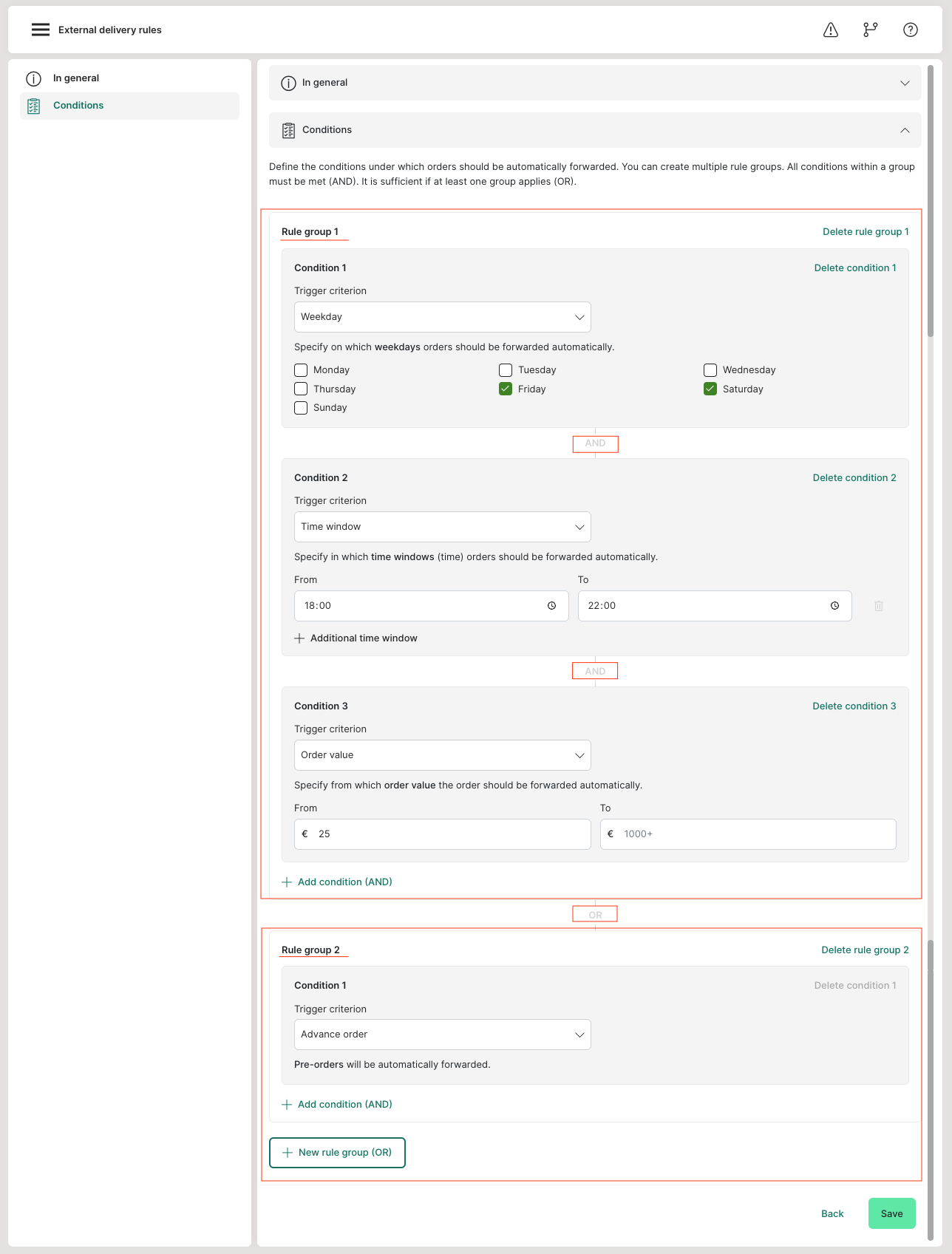
For example: One rule group contains the AND conditions "Friday or Saturday", "18:00 to 22:00" and "Order value from 25". It matches only if the order meets all three conditions. A second rule group with an OR condition containing only "Preorder" also allows preorders through, regardless of the first rule group's weekday, time, and order value conditions.
A second group with an OR condition broadens the rule. Put a restriction in every rule group with an AND condition if it must apply to every automatically forwarded order.
Available conditions
Condition | Configuration | Which orders the condition applies to |
Advance order (preorder) | Select the "Preorder" condition. | For preorders. The current condition supports forwarding preorders. |
Order value | Enter a lower bound, upper bound, or both, in the displayed currency. | Orders whose stored order amount is within the range, including the bounds. |
Order source | Select one or more order sources. | Orders from any selected source: webshop, app, call center, or a portal available for the tenant. Mobile webshop orders count as webshop. |
Distance to delivery address | Enter a lower bound, upper bound, or both, in kilometres. | Orders whose estimated distance from the store to the delivery address is within the range, including the bounds. |
Time window | Enter one or more start and end times. | Orders whose relevant time falls within any selected window, including its endpoints. Windows can cross midnight, for example 22:00 to 02:00. |
Weekday | Select one or more weekdays. | Orders whose relevant date falls on any selected weekday. |
For order value and distance ranges, leave one bound blank for an open range. For example, "From 25" with no upper bound means 25 or more. Both fields cannot be blank, and the lower bound cannot exceed the upper bound.
Time and weekday use the scheduled date and time of the preorder. For immediate orders, they use the order creation date and time. They use the stored local time. A preorder entered on Monday for Friday at 19:00 is checked against Friday and 19:00.
Distance uses geocoded coordinates and SIDES' distance calculation, which estimates distance from a straight line with a road factor. It is not a live driving route. If either address lacks usable coordinates, the distance condition does not match.
Time and weekday use the scheduled date and time of the preorder. For immediate orders, they use the order creation date and time. They use the stored local time. A preorder entered on Monday for Friday at 19:00 is checked against Friday and 19:00.
Distance uses geocoded coordinates and SIDES' distance calculation, which estimates distance from a straight line with a road factor. It is not a live driving route. If either address lacks usable coordinates, the distance condition does not match.
Assign the rule to a store
- Check that the store has an active external delivery account and the intended provider configured (under Admin: External services > External delivery (DaaS)).
- Open the store's configuration and settings under Admin: Store management > Stores > Edit > Settings > Disposition / tour management.
- Set "Deliveries must be manually forwarded to External Delivery as a Service (DaaS)" to "No" to disable the use of automatic decisions.
- Select "Rule-based".
- Then choose the saved rule from the dropdown.
- Save the store settings with "Save".
- The assigned store is then shown for the relevant rule under Admin > External services > External delivery rules . If the same rule is activated for several stores, all assigned stores are listed there.
Stores can only be assigned through the store settings. A rule assigned to at least one store therefore cannot be deleted. First, all assigned stores must be removed from the rule through the store settings (under Admin: Store management > Stores > Edit > Settings > Disposition / tour management > Deliveries must be manually forwarded to External Delivery as a Service (DaaS) > Rule-based).
Handle an order that does not match the rule
A rule mismatch stops automatic forwarding. It does not cancel the order or book an external driver.
Staff can still use the car button in the POS to request a driver manually for an order. Manual forwarding bypasses the configured forwarding rule.
A matching rule does not guarantee a booking: the existing provider checks still apply. This means that orders may be forwarded but still cancelled by the external delivery companies.
A matching rule does not guarantee a booking: the existing provider checks still apply. This means that orders may be forwarded but still cancelled by the external delivery companies.
Note:
Orders that need to be paid on delivery, whether cash or card, are blocked from automatic forwarding even if the rule matches.
Investigating why an order was not forwarded
Open the "External delivery log" (under Admin: External services > Logs > External delivery) and find the order. Open the order details using the eye icon "View details". A rule-blocked order appears with status "blocked_rule". A payment collection block uses "blocked_cash".
For a rule mismatch, check the assigned rule, its AND and OR rule groups, the order source, and the relevant date and time.
For a distance condition, check the address coordinates. If the rule matches but no driver is booked, check the provider response and the existing delivery requirements.
For a rule mismatch, check the assigned rule, its AND and OR rule groups, the order source, and the relevant date and time.
For a distance condition, check the address coordinates. If the rule matches but no driver is booked, check the provider response and the existing delivery requirements.
Edit or delete a rule
Search the external delivery rules list by name and open the rule using the pencil icon "Edit".
The list shows the rule conditions and assigned stores. Saving changes to a shared rule changes the configuration used by all stores assigned to it for subsequent evaluations.
A rule assigned to at least one store cannot be deleted. First change the rule assignment for every affected store in the store settings (under Admin: Store management > Stores > Edit > Settings > Disposition / tour management > Deliveries must be manually forwarded to External Delivery as a Service (DaaS) > Rule-based), save those settings, and then delete the unused rule.
Configure cancellation and return handling
The setting "Order status upon cancellation or return of external delivery (DaaS)", located below the forwarding rule controls (under Admin: Store management > Stores > Edit > Settings > Disposition / tour management > Order status upon cancellation or return of external delivery (DaaS)), defines how SIDES handles a provider cancellation or return after acceptance.
The external delivery service can cancel the order after acceptance (status: canceled) or return it (status: returned).
The external delivery service can cancel the order after acceptance (status: canceled) or return it (status: returned).
Option | Order handling |
Always set order to "Sent to store" | Return the order to the store for handling. |
Cancel order or set it to "Sent to store" if it has already been picked up | Cancel before pickup; return to store handling if pickup has already happened. |
Cancel orders | Cancel the order, subject to whether the order can be cancelled. |