Item visibility only in the menu and hidden commodity groups
What With the item property "Only visible in menus" items are hidden as individual items in the webshop, app, point of sale (POS), or self-ordering terminal (SOT), but remain available as components of menus or menu combinations. Where Admin: Item management > Item > Edit > Property "Only visible in menus". |
Items only visible in menus
With the item property "Only visible in menus" certain items can be excluded from general sales channels (e.g. from display on the standalone item page, from cross-selling, and from direct reordering).
However, the items remain available as part of menus or menu combinations.
This is useful, for example, for items that should not be sold or displayed individually, but should only be available as a selection within a menu.
For example, the promotional bowl is only visible in the menu:
Overview and basic functionality in the webshop/app
If an item is assigned to a hidden commodity group (Admin: Item management > Commodity groups > Edit > Display options > Display option in the webshop > Hide) or is not assigned to any public category, its default visibility on the item page is suppressed.
To allow such items to be displayed within menus without being visible on the general item page, the setting "Only visible in menus" is used.
The functionality is as follows:
The functionality is as follows:
- Hidden on the standard item page: Any item assigned to a hidden commodity group is not displayed in general item lists, is not suggested for standalone upselling, and cannot be reordered individually outside its parent menu.
- Override at menu level: Enabling the setting "Only visible in menus" ensures that the hidden item can be displayed and used normally as soon as it is selected as a menu component or course option.
- Unassigned items: Items that are not assigned to any commodity group remain hidden from public item lists by default, but they can be displayed within menus if the setting "Only visible in menus" is enabled.
System visibility matrix for the webshop/app
Area | Standard item | Item in hidden commodity group | Item with the "Only visible in menus" property enabled |
Main item list | Visible | Hidden | Hidden |
Upselling/Cross-selling | Available | Excluded | Excluded |
Standalone reordering | Allowed | Blocked | Blocked |
Within menus/combinations | Visible | Hidden (default) | Visible |
Description of the system visibility matrix
The individual areas of the system visibility matrix mean the following:
- Main item list: A standard item is visible in the main item list. Items from a hidden commodity group and items with the property "Only visible in menus" are hidden in the webshop/app and are therefore not displayed in the main item list.
(However, an item from a hidden commodity group can be visible at the point of sale (POS)/self-ordering terminal (SOT), depending on the enabled incoming order channels and outgoing order channels). - Upselling/Cross-selling: A standard item can be used for upselling or cross-selling. The two restricted item types are excluded from upselling or cross-selling, so they cannot be used.
- Standalone reordering: A standard item can be reordered individually. Standalone reordering is blocked for the two restricted item types.
- Within menus/combinations: A standard item is displayed normally in the menu. An item from a hidden commodity group remains hidden within a menu by default. However, an item with the property "Only visible in menus" is visible and displayed within menus or menu combinations.
Item property "Only visible in menus"
Procedure for enabling the item property "Only visible in menus":
- Go to Admin: Item management > Item.
- Click "Edit" for the desired item.
- Enable the property "Only visible in menus" for the desired item.
- If commodity groups have already been assigned in the "Commodity groups" section, disable all commodity groups so that the item is visible only in the menu.
It is not necessary to assign the item to a hidden commodity group. - Save the change with "Save" for the desired item.
Optional: Hidden commodity group
A hidden commodity group can be used, for example, for limited-time promotions or special offers.
The hidden commodity group can be linked to a voucher (under Admin: Marketing campaigns > Voucher list). If the customer redeems the voucher using a voucher code, they receive the configured promotion, e.g. a limited-time burger.
Procedure for creating a hidden commodity group:
- Go to Admin: Item management > Commodity groups.
- Click "Add commodity group" for the desired item.
- Under "Commodity group name", enter a unique name, e.g. "Current promotion", if it should also be visible at the point of sale, for example.
- Enable the "Incoming order channels" and "Outgoing order channels" for which the commodity group should be valid.
- Now open the "Display options" section and under "Display option in the webshop" select the option "Hide". This hides the commodity group in the webshop.
Example:
If the incoming order channel "Point Of Sale" (POS) and the outgoing order channel "Counter sales" are enabled, the hidden commodity group is displayed at the POS for counter sales.
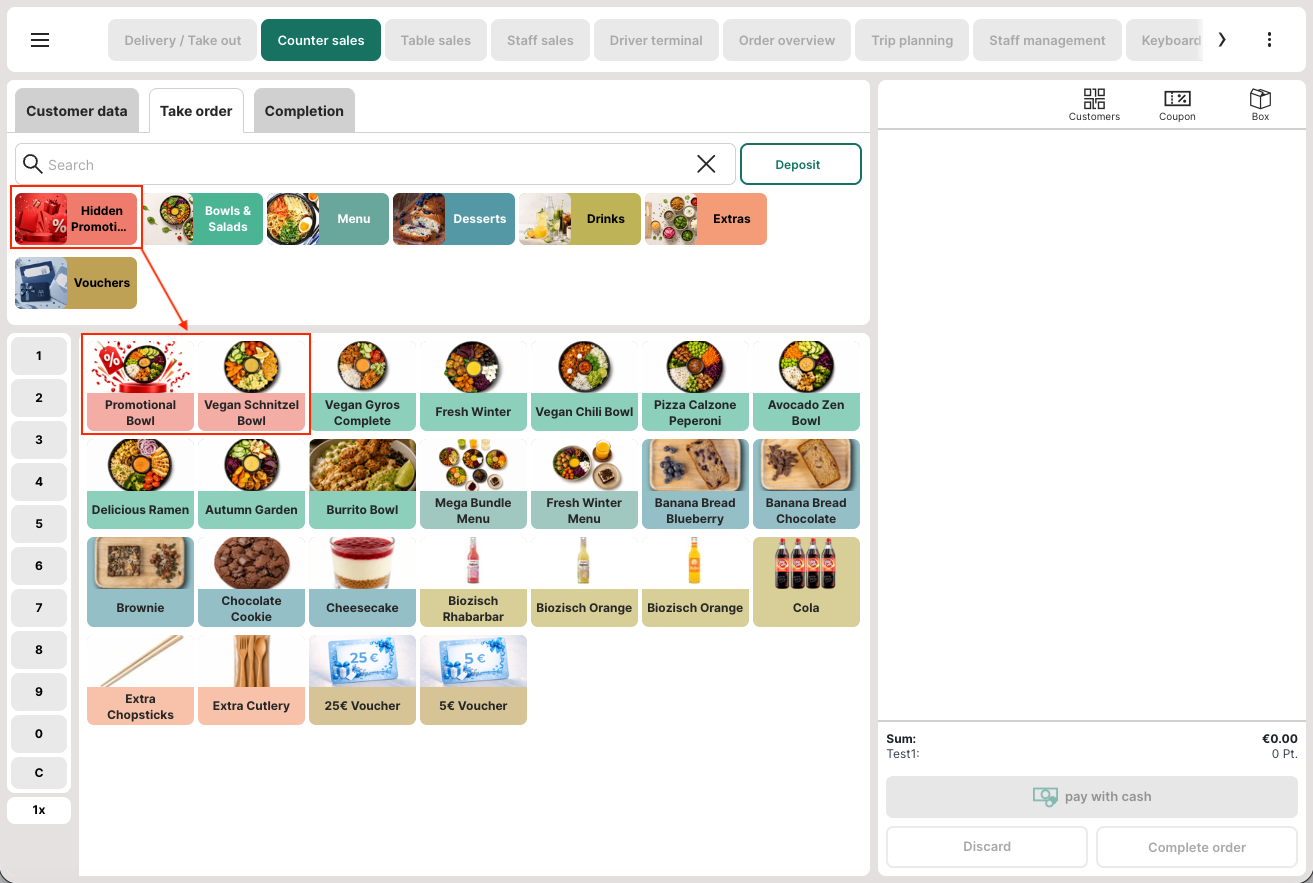
However, the hidden commodity group is not displayed in the webshop because the commodity group display option "Display option in the webshop" is set to "Hide".
However, the hidden commodity group is not displayed in the webshop because the commodity group display option "Display option in the webshop" is set to "Hide".
Optional: Create a voucher code for an item from a hidden commodity group
If the item from a hidden commodity group should also be offered in the webshop via a voucher code, proceed as follows.
Procedure:
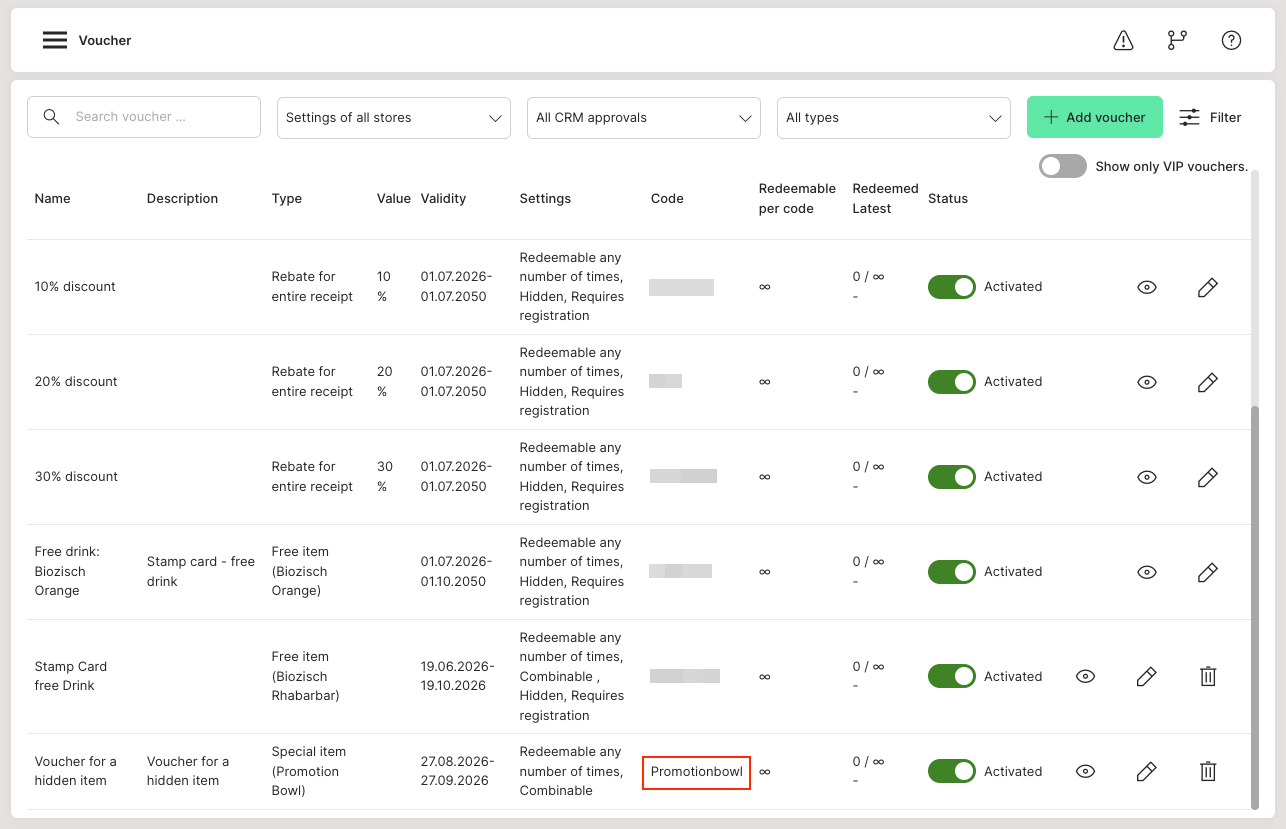
- Go to Admin: Marketing campaigns > Voucher list and create a new voucher.
- Enter a unique name for the voucher.
- Select the desired voucher type, e.g. "Specific item". For this type, the price is defined in the item.
- Select the desired item, e.g. "Promotional bowl" for the desired item.
- Enable the option "Can be used any number of times" for the desired item.
- Add a validity period.
- Save the voucher with "Save" for the desired item.
The voucher code is then displayed in the voucher overview. You can change the code at any time by editing the voucher again and entering a new code or text in the "Code" field that can be used to redeem the voucher, e.g. "Promotionbowl" for the desired item.
Examples
Example of "Only visible in menus" in the webshop, app, point of sale, and self-ordering terminal
A menu contains:
- Fries,
- salad and
- special side dish
The "special side dish" should not appear as a standalone item in the general item list. It should only be available as a selection within the menu.
For this purpose, the item is hidden accordingly (so not assigned to any commodity group) and the option "Only visible in menus" is enabled.
Example of "Only visible in menus" and additionally selectable in the commodity group at the POS
A menu contains:
- Promotional burger,
- fries and
- drink
The promotional burger should not be displayed as a standalone item in the webshop, but should only be available in the menu. In addition, it should be selectable at the POS both within the menu and as a standalone item.
For this purpose, the item is assigned to a hidden commodity group, e.g. "Promotion". For this commodity group, the incoming order channel "Point of Sale" (POS) and the outgoing order channel, e.g. "Counter sales" are enabled. In addition, the property "Only visible in menus" is enabled.
To prevent the item from being displayed as a standalone item in the webshop, the commodity group under "Display option in the webshop" is set to "Hide" is set accordingly.
Result: The promotional burger is visible only in the menu in the webshop and can be selected there. It is also available within the menu at the POS, but in addition, the promotional burger can be selected as a standalone item at the POS via the hidden commodity group "Promotion". The commodity group is therefore hidden only for the webshop but remains visible at the POS.