SIDES POS app: Using the S700/S710 as a mobile payment terminal or mobile POS
What Depending on your needs, the S700/S710 terminal can be used solely for payment processing or as a mobile POS. Where Restaurant POS app. |
Introduction
With the SIDES POS app on the S700 and S710, you can use the device either as a standalone payment terminal or as a mobile POS.
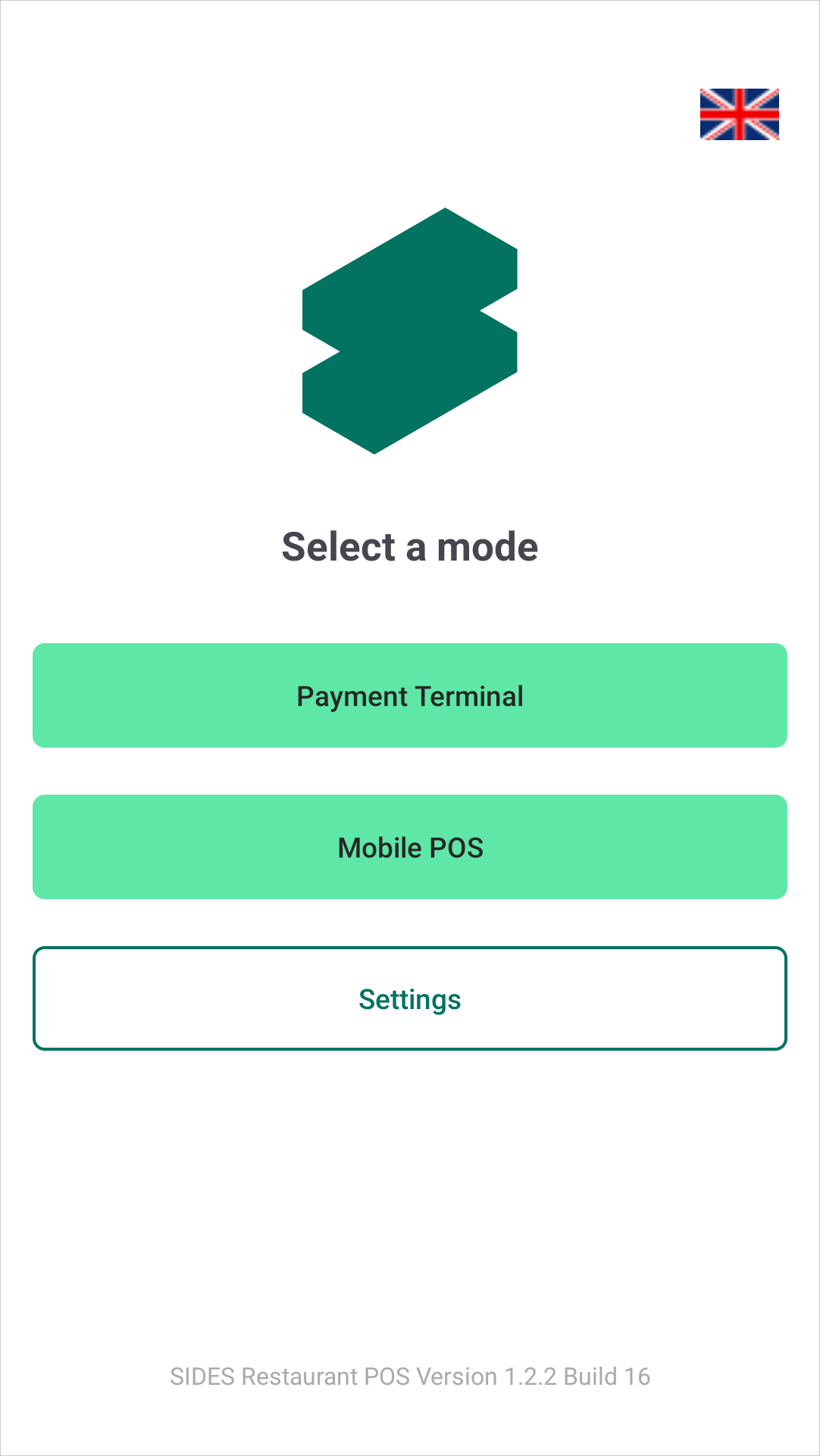
When you start the app, two operating modes are available:
When you start the app, two operating modes are available:
- Payment terminal: The S700/S710 is used exclusively as a payment terminal.
- Mobile POS: The mobile SIDES POS is used on the S700/S710. This allows orders and card payments to be processed directly on the same device.
In addition, you can change the device unlock PIN in the settings.
Requirements
To use this feature, you need:
- an S700/S710 that has been set up with the SIDES POS app installed
- an active internet connection
- for mobile POS, your 7-digit SIDES customer number
- a username and password for login
Use as a payment terminal
1. Start payment terminal mode
- Open the SIDES POS app.
- On the start screen, select "Payment terminal".
- The device switches to payment terminal mode.
The SIDES POS screen is then displayed. The device is protected against unauthorized access.

2. Unlock the payment terminal
The unlock mechanism works in the same way as unlocking an self-ordering terminal (SOT).
- Tap the top-right corner of the screen twice.
- Tap the gear icon.
- Enter the unlock PIN.
- Confirm the entry with "OK".
Change the unlock PIN
You can change the unlock PIN via the mode selection screen.
- Open the mode selection screen.
- Tap "Settings".
- The currently saved PIN is displayed under "Current PIN".
- Under "New PIN (4 digits)", enter a new four-digit PIN.
- Tap "Save PIN".
Select mobile POS
- In the POS app, select "Mobile POS" mode.
- Enter your 7-digit customer number.
- Enter your username.
- Enter your password.
- Tap "Login".
If the setup is correct, the terminal and the associated location are then initialized.
After that, log in to the POS as usual and select "Mobile POS" as the mode.
After that, log in to the POS as usual and select "Mobile POS" as the mode.
Process a card payment on the S700/S710
- Add the desired items to the order.
- Open the checkout/order completion screen.
- Select "Card payment (this device)" as the payment type.
This starts the card payment directly on the S700/S710 currently in use. No separate payment terminal needs to be selected.
Tips and notes
- Important: The tip selection depends on the store configuration. The options displayed on the S700/S710 are controlled by the corresponding store settings.
For more information about "Tip selection", see this documentation: https://support.get-sides.de/portal/en/kb/articles/sides-pay-terminal-onreader-tipping. - Tip: If you want to use the S700/S710 exclusively for card payments, use "Payment terminal" mode. If orders and payments are to be processed on the same device, use "Mobile POS".
- Important: When using "Mobile POS", select "Card payment (this device)" during checkout/order completion so that the payment is started on the S700/S710 currently in use.
- Tip: The transaction can be canceled both during the payment process and during tip selection.