Topping swap
The topping exchange is intended to give customers a discount on the respective item or shopping cart by deselecting ingredients, or to allow them to select a different topping in exchange. The different variants are presented below.
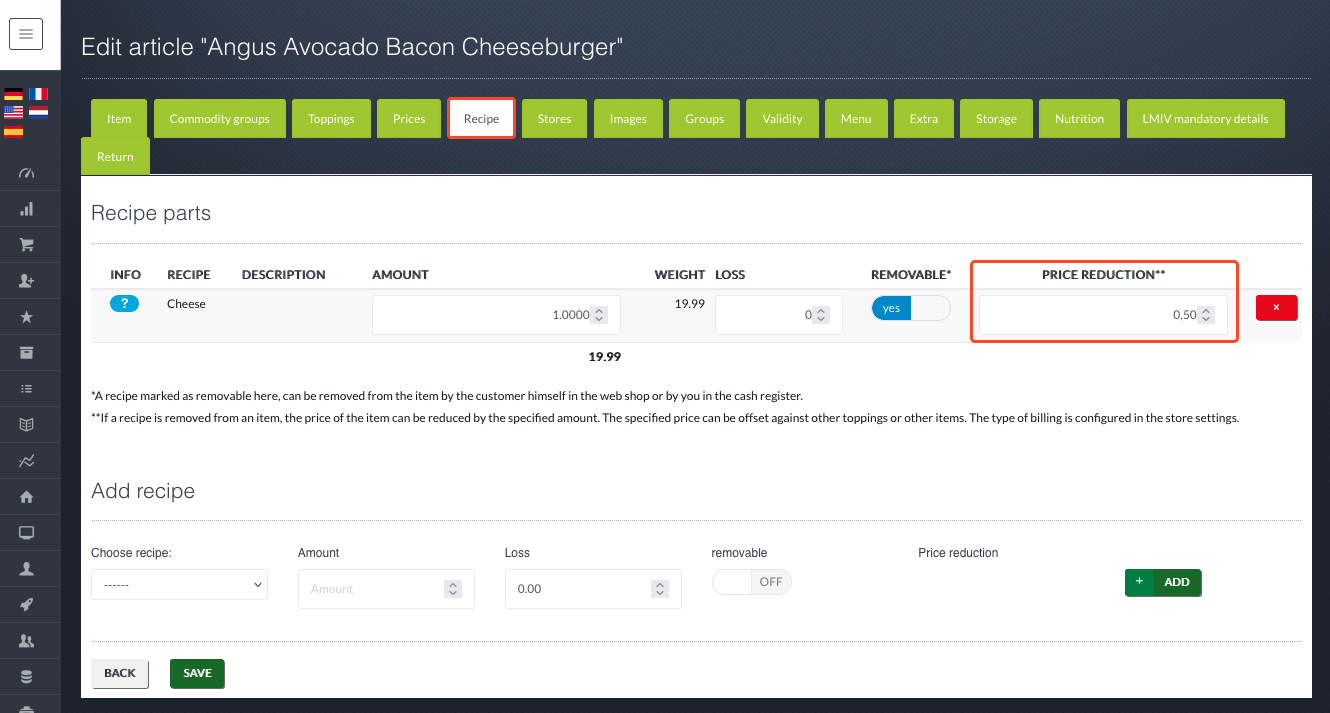
Important: In the second step, we explain where the value of the ingredients that can be deselected is specified. This value is entered globally, i.e. the store itself can only decide whether and how it wants to use the function or not. However, it cannot adjust the prices individually. These are identical for all stores.
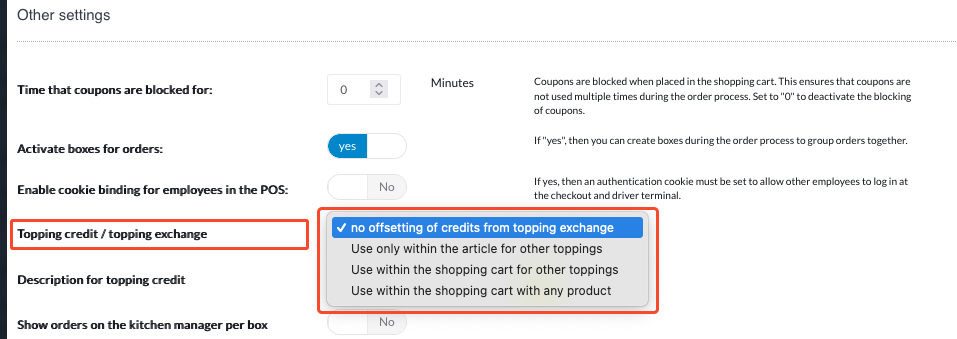
The first step in creating the topping exchange should be to choose the variant you want to use. To do this, go to the category "Store" --> under category sub-item "Stores" --> at the green "pen symbol" button "Edit" --> to tab "Settings" --> then "Other settings" and choose between 3 options.
- Use only within the article for other toppings: Here, the discount can only be applied to the same item and its toppings by deselecting a topping for a variable item in the shopping cart. Example: Hawaiian pizza is selected without pineapple. This discounts the item by, for example, €1. This €1 can now be used as a discount for the pizza or the customer can choose a different topping for the Hawaiian pizza, the value of which is used to offset the discount.
- Use within the shopping cart for other toppings: Here, the discount resulting from deselecting a topping can be offset against the toppings of all items in the shopping cart. Example: The shopping cart contains Hawaiian pizza and salami pizza. The Hawaiian pizza is selected without pineapple. This discounts the item by, for example, €1. This €1 can now be used as a discount on the toppings of both pizzas.
- Use within the shopping cart with any product: Similar to option 2, the discount granted is applied to the entire shopping cart. However, not only to the toppings. The discount granted can also be applied to the entire invoice.
- Use within the shopping cart with any product: Similar to option 2, the discount granted is applied to the entire shopping cart. However, not only to the toppings. The discount granted can also be applied to the entire invoice.
As a second step, go to your article overview and edit the articles for which you want to use these functions. Go to the tab "Recipe", around the "Price reduction" to be set.
If not already done, the first step should be to create the recipes and add them to the articles.
If not already done, the first step should be to create the recipes and add them to the articles.