Print server settings in the Restaurant POS app
What With
the print server settings, you can check the SOCP ID, connection type,
and print server status, as well as stop and start the print server. Where Restaurant POS app: Home > Print Server Settings. |
Introduction
This guide explains the print server settings. The SOCP ID (Simply Order Cloud Print) serves as the central connection between the app and the server. Additionally, synchronization, connection types and control options such as start/stop and automatic start are explained. Finally, the instructions offer compact help for troubleshooting - from connection problems to printing failures after a new installation to conflicts caused by multiple SOCP IDs in the admin area.
Print server settings
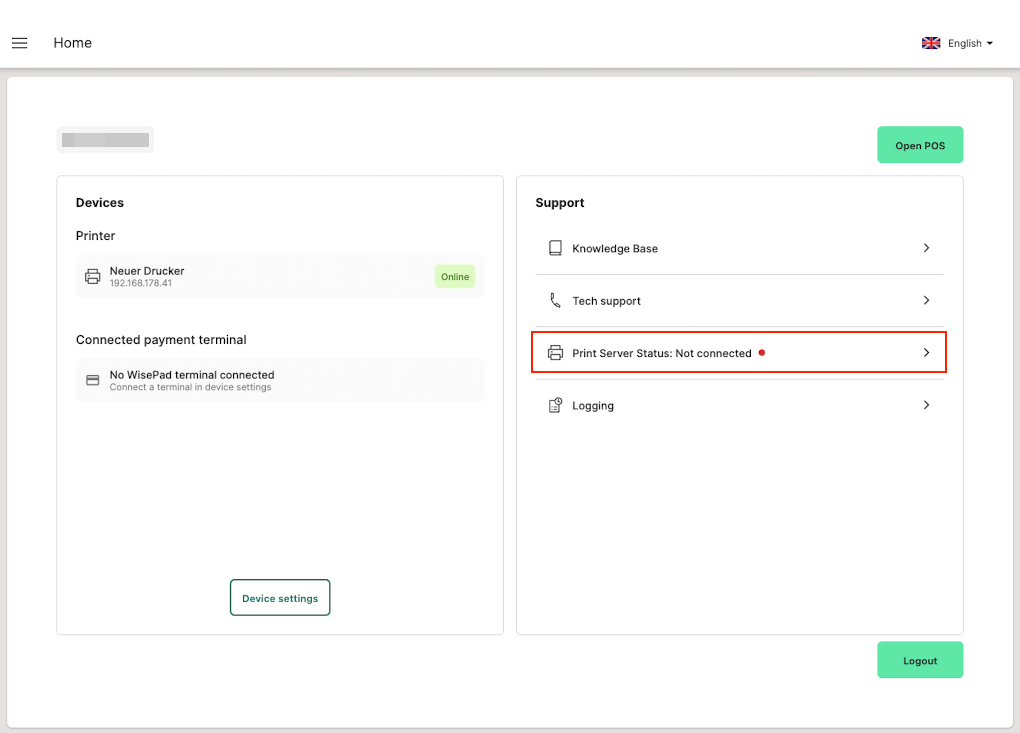
On the home page, you can open the print server settings via the "Print Server Status" menu item.
SOCP ID
The SOCP ID (Simply Order Cloud Print) is the unique identifier of your app installation for the cloud printing service.
It connects the app to the print server in the SIDES administration area.
Important:
It connects the app to the print server in the SIDES administration area.
Important:
- Each app installation receives its own unique SOCP ID.
- If the app is deleted and reinstalled, a new SOCP ID is automatically generated - this must be replaced in the admin area, otherwise there will be no connection.
Synchronization
Displays the current connection status between the app and the cloud print server.
- Green: Connection active.
- Red: No connection - unable to print.
If the indicator is red, SOCP ID and connection type should be checked.
Connection type
The connection type (selection between HTTP, SQS and AMPQ) determines which service the print jobs are transmitted over.
Important:
Important:
- The connection type in the app must be identical to that in the admin area (Admin: Hardware > Printer) be the set type.
- Different settings mean that the print server cannot connect.
- The connection type should only be changed if it has also been adjusted in the admin area or if support specifies this.
Start/Stop
Controls the local print server service on the device.
- Stop: Stops the print server.
- Start: Restarts it (appears when the service is stopped).
Useful when print jobs do not arrive or the server does not synchronize.
Auto-Start (start automatically)
If enabled, the print server will automatically start with the app.
Recommendation: Always keep this option activated so that printing processes run reliably in the background.
Recommendation: Always keep this option activated so that printing processes run reliably in the background.
Refresh connection
Reconnects to the cloud without stopping the print service.
Particularly helpful in the event of short-term network interruptions or after changes to the SOCP ID or connection type in the admin area.
Particularly helpful in the event of short-term network interruptions or after changes to the SOCP ID or connection type in the admin area.
Notes
- If you have connection problems, always check first:
- Is the SOCP ID correct in the admin area?
- Does the connection type match the admin configuration?
- A new app installation creates a new SOCP ID that needs to be updated in the admin area.
Troubleshooting
Here you will find typical error patterns and quick solutions:
No connection to the print server (sync red)
Possible cause
- Incorrect or missing SOCP ID in the admin setting (Admin: Hardware > Printer).
- Connection type does not match admin setting.
- Internet connection unstable or interrupted.
- Print server service has stopped.
Solutions
- Check the SOCP ID: Do they match 1:1 in the admin and the app?
- Adjust the SOCP ID in the admin area when the app has been reinstalled.
- Compare the connection type (e.g. SQS) with the admin configuration.
- Press "Refresh connection".
- Restart the print server service via "Stop → Start".
- Make sure the device is connected to the internet.
No printing possible after reinstalling the app
Caused
The app automatically generates a new SOCP ID.
Solution
The app automatically generates a new SOCP ID.
Solution
- Delete or overwrite old SOCP ID in the admin area.
- Enter the new SOCP ID from the app in the admin area.
- Reconnect → "Refresh connection".
Connection breaks down sporadically
Possible causes
- WiFi/internet unstable.
- Local print server service is not responding.
- SQS/Cloud connection briefly interrupted
Solutions
- Execute "Refresh connection".
- Print server "Stop → Start".
- Restart device.
- Check for network interruptions.
Receipts are not printed even though all settings are correct
Possible cause
Even if the SOCP ID, connection type, print server settings and all app data are correct, a receipt may not be printed.
Even if the SOCP ID, connection type, print server settings and all app data are correct, a receipt may not be printed.
A common and often overlooked reason:
For the same POS terminal, an additional printer with a different SOCP ID is configured in the admin area.
Consequently:
Consequently:
- The POS terminal in the admin area is configured so that certain receipts are sent to a different printer with a second SOCP ID belonging to a different device.
- The system sends the print job technically correctly - but to the wrong printer, which may be offline, no longer exists or in a different location.
Example
- Your app uses the SOCP ID, e.g., "SOCP-123".
- In the admin panel, for the same POS terminal, e.g., "Cash Register 1", there is also a printer configured that uses the SOCP ID "SOCP-987".
- Invoice receipts or kitchen slips are configured for both printers.
→ The system sends the order to "SOCP-987" instead of "SOCP-123", or vice versa.
→ Result: Nothing is printed on the other printer.
Solution
Check in the admin area:
- Are there several printers stored for the POS terminal?
- Are there printers entered there with different SOCP IDs than the ones the app uses?
- Which SOCP ID is actually used in the admin for each document type?
Then adjust the mapping so that:
- only the correct printer with the correct SOCP ID receives the desired receipt.
- the cash register only points to one printer.
Notice
This problem is particularly common when:
- several printers have been set up in parallel.
- old printers are not removed but are still assigned to receipts.
- Test devices and productive devices exist side by side and both are stored in the admin.
- a location uses multiple printers with different SOCP IDs (e.g. POS + kitchen + bar).